
Quick start
Follow this order: install PluginX → allow user scripts → sign in and use an app.
1. Install PluginX
In Chrome or Edge with extension support, open the PluginX homepage, click Add to browser and follow the installation guide.
After downloading the package, open the browser's extension manager, enable Developer mode and drag in the extension file as shown in the homepage guide. Confirm that PluginX appears in the list and is enabled.
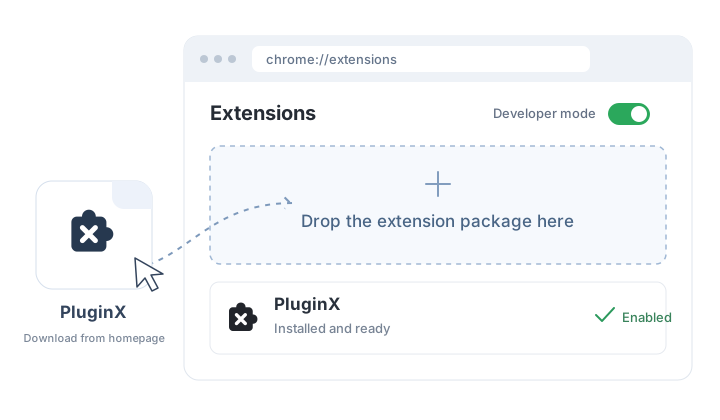
Enter the extension manager address in your browser's address bar:
| Browser | Extension manager |
|---|---|
| Chrome | chrome://extensions |
| Microsoft Edge | edge://extensions |
After installing the extension, enable user scripts as described below.
2. Allow user scripts
- Find PluginX in the extension manager and open Details.
- Enable Allow user scripts.
- Return to PluginX and refresh the page, or select Check again in the permission prompt.
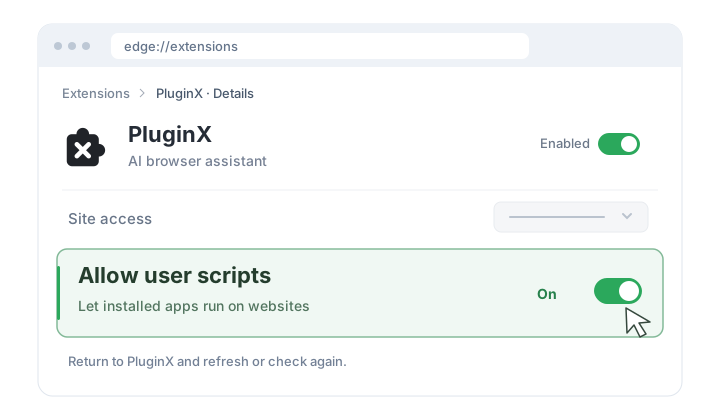
The illustration uses Edge. Enabling the extension and allowing user scripts are separate settings. Apps may not run if only the main extension toggle is on.
Cannot find “Allow user scripts”?
Open the PluginX details page, rather than the extension list. The label and location can vary by browser version.
Chrome 138 and later use the user scripts toggle in extension details. Earlier versions enable this capability through Developer mode. Follow PluginX's permission prompt and check again after changing the setting. See the official Chrome documentation.
3. Sign in and start using apps
Click Sign in at the top right of the portal and use your phone number and SMS verification code. Signing in with a new phone number creates an account.
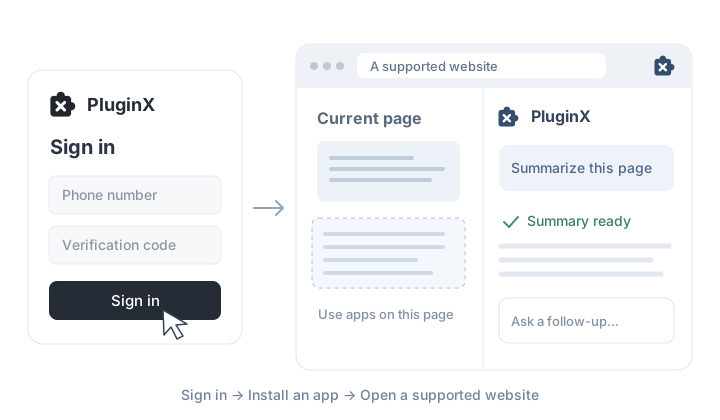
Install your first app:
- Open the marketplace and search by name or task.
- Open an app's details to review its description, supported websites, version and pricing.
- Follow the installation prompts. Purchase paid apps when prompted, or start a trial if one is offered.
- Wait for the app to sync to this browser, then open a supported website.
Use My apps in the avatar menu to check status or enable and disable apps. See Install and manage apps.
For password settings and profile management, see Account management.
Use another device
Install and enable PluginX on the new device, allow user scripts, sign in to the same account and open My apps. If an app is Pending sync, follow the sync prompt.
Cloud installation records and local browser apps are separate. A cloud record does not mean the app has finished syncing to this browser.